
How to add an event to a specific calendar in Outlook
Clear, step-by-step guide to adding an event to a chosen Outlook calendar, with tips for organizing holiday releases, school events, and music outings.

If you’re trying to add an event to a specific calendar in Outlook, you’ll want a clear path that works whether you’re on desktop or mobile. This guide walks you through choosing the right calendar, creating the event, and syncing it so it shows up where you expect. You’ll also see quick tips for keeping your entertainment schedule organized with ease.
First, identify which calendar should host the event. Outlook lets you create multiple calendars, so separating movie nights from music releases helps you stay on top of what’s coming up. The steps below are designed to be practical, not theoretical, so you can apply them right away.
Along the way you’ll find practical checks for common hiccups, like ensuring you’re editing the correct calendar before you save. By the end you’ll know how to add events confidently and keep your calendar tidy for friends, fans, or family.
- Choose the right Outlook calendar before you save, then use the full event form for essential details.
- Sync across devices to keep all lists current, and share calendars with appropriate permissions for group planning.
- Avoid common mistakes by checking the calendar, including location and reminders, and use checklists to speed setup.
Basics of choosing the right Outlook calendar
Identify the target calendar
Start by opening Outlook and looking at the left sidebar where calendars are listed. If you don’t see the calendar you want, enable it from the calendar view options. Choosing the correct calendar prevents misfiled events and last-minute edits. You can learn how to add an event to the USA events calendar and then tailor it for your needs.
If you’re coordinating multiple events, assign each one to a specific calendar to keep categories separated. For example, place movie screenings on a ‘Movies’ calendar and concert tickets on a ‘Music’ calendar.
Always double-check the active calendar before you save; this small habit saves you from moving events after they’re created.
- Open the calendar pane
- Tap or click the target calendar
- Confirm the active calendar before saving
Quick add vs full event form
Quick add lets you drop in a title and time rapidly, which is handy for familiar events. The full event form adds location, attendees, reminders, and repeats, which helps avoid back-and-forth edits.
For an entertainment slate—screenings, premieres, or live shows—the full form is usually best. It ensures venue details and guest lists are captured in one place.
If you’re sharing the calendar, complete fields that others will rely on, like location and description, to reduce follow-up questions.
- Use full form for public events
- Add a reminder if attendees need notice
- Attach a location for clarity
Creating the event with precise details

Fill essential fields
Enter a concise title that reflects the entertainment focus, followed by the date and start time. Double-check the time zone if you’re coordinating with others in different regions. For broad coverage, check the latest on Best Games World news to stay in the loop.
Add a location that helps attendees plan travel, and paste a short description if you need to convey extra details like ticket links or schedule notes.
If the event recurs, set the repetition rules now to avoid later adjustments that ripple through the calendar.
- Title, date, time
- Location and description
- Recurrence when needed
Invite attendees or keep it private
Inviting attendees is useful for collaborations or public events, but for personal planning you can keep calendars private. When inviting, add emails or contact groups to streamline participation.
Public events benefit from a detailed description and a visible location. Private entries should still provide enough context in the notes.
Regularly review attendee lists to remove duplicates and ensure invitations aren’t sent to outdated contacts.
- Invite or keep private
- Add clear descriptions
- Manage attendee lists
Integration and viewing options
Sync across devices
Outlook supports syncing calendars across desktop, web, and mobile apps. Ensure you’re signed in with the same account on all devices to keep events consistent. If you operate locally, consider how to add your business listing in the USA for visibility.
- ☐ Use the same Outlook account everywhere.
- ☐ Enable calendar syncing in settings.
- ☐ Verify that changes propagate after saving.
A quick check is to open the calendar on each device and confirm the event appears at the right time. Minor delays happen, but most syncs are fast enough for planning.
If an event doesn’t show up, refresh the calendar or re-sync the account in the app settings.
- Same account across devices
- Refresh if missing
- Check time zones
| Method | Best Use | Notes |
|---|---|---|
| Quick add | Fast entries | Limited details; good for reminders |
| Full event form | Most events requiring detail | Includes location and attendees |
| Recurring events | Ongoing schedules | Configure repeats carefully |
Sharing calendar views
Sharing a specific calendar with friends or team members helps coordinate entertainment plans. Set permissions to view or edit depending on who needs control.
If you publish a calendar feed, readers can see upcoming events without accessing private notes. This keeps sensitive details hidden while still sharing the plan.
Always review shared access after adding new members to ensure that the right people can see or modify events.
- Share with permission levels
- Publish feeds carefully
- Review access regularly
If reminders are mis-timed, review the notification settings and adjust to a period that fits the event’s schedule.
Common mistakes and quick fixes

Boxed pitfalls and fixes
The most frequent slip is editing the wrong calendar and saving there. A simple habit is to confirm the calendar name in the header before saving. The same calendar mindset applies when you buy and sell in the USA, keeping schedules and listings tidy.
- Mistaken calendar edits happen easily.
- Always verify the calendar before saving.
- Add clear location and a note for context.
Another pitfall is missing location details, which leaves attendees guessing. Always include a venue and a short notes field for context.
If reminders are mis-timed, review the notification settings and adjust to a period that fits the event’s schedule.
- Confirm target calendar
- Include location details
- Check reminder timing
Myth vs fact about calendar sharing
Myth: All attendees will see every update instantly. Fact: Updates may take a moment to propagate, depending on sync and permissions.
Myth: Public events require no privacy checks. Fact: Even public events should disclose essential details while omitting sensitive data.
Myth: Recurring events never require tweaks. Fact: Recurrence rules may need adjustments if plans change.
- Propagation delay happens
- Privacy details matter
- Recurrences can change
advanced features
Syncing multiple calendars
If you manage more than one calendar, start by choosing the calendar you need for the event. This keeps details like location and reminders aligned across schedules. Test a quick update to confirm the event appears where you expect, then proceed with confidence. death notices in the USA
When you sync calendars, check which accounts are connected and what permissions are granted. If you see duplicate entries, adjust the calendar’s default settings to avoid clutter. Keep a simple naming convention to distinguish personal from work calendars.
- Use color codes to differentiate calendars
- Verify time zones before saving
- Enable reminders for all copies
- Test an invite to confirm visibility
- Regularly prune old events
mobile optimizations
Touch-friendly controls
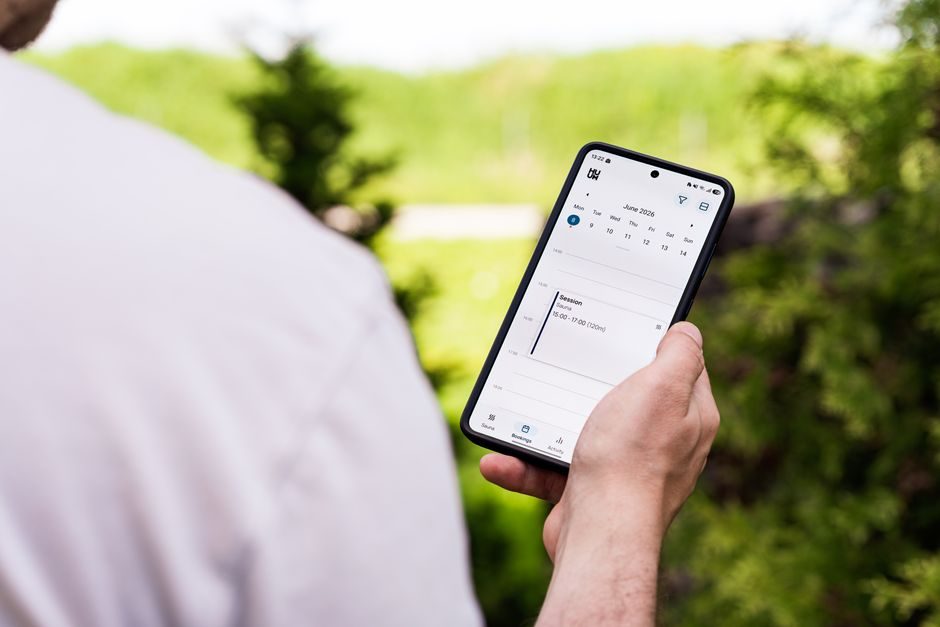
On mobile, use larger tap targets and swipe gestures to edit details quickly. Set a clear title, location, and time so the notification behaves as expected when the event approaches.
Check your device’s time zone in the app settings to avoid mismatched reminders when you travel.
When you copy or move events, confirm the updated calendar and time to prevent doubles.
- Use the edit button rather than long-press to avoid accidental edits
- Rely on push notifications for timely alerts
- Keep the event description concise
- Test calendar sync after changing devices
- Always review default reminder times
collaboration tips
Sharing and invitations
Sharing a calendar makes plans easier and reduces back-and-forth, but set permissions carefully. Decide whether others can edit or only view the event details. Save changes and ping participants to confirm they can see the update.
- Make sure everyone can view the event details before sending invites.
- Clarify who is responsible for any changes to the event.
- Keep confidential notes out of shared calendars.
When inviting others, include a concise agenda and any attachments that help attendees prepare. This keeps meetings or premieres running smoothly.
If someone can’t access a shared calendar, offer alternate access options like a link or a temporary guest account.
- Limit who can edit events
- Attach relevant files to reduce emails
- Use RSVP tracking to gauge attendance
- Provide a backup contact for permissions
- Review access monthly to maintain control
pitfalls to avoid

Common missteps
Mistakes often happen when the wrong calendar is selected or the time zone is misapplied. Double-check the calendar choice before saving and review changes after sending invites.
- Avoid adding events to the wrong calendar by selecting it first.
- If you see similar events, merge or delete duplicates promptly.
- Keep a consistent workflow for edits and updates.
You can accidentally create duplicate events if you copy an invite to another calendar. Take a moment to confirm the destination calendar.
Relying on natural language descriptions (like “next Friday”) can cause confusion when time zones or daylight saving rules shift. Use exact times instead.
- Double-check the calendar before saving
- Avoid duplicate events by confirming destination
- Use explicit start times
- Review invites for accuracy
- Turn on notifications to catch mistakes early
Frequently asked questions
Can I add notes or attachments to an Outlook calendar event?Yes. When you open an event, you can add a description, links, and files to help attendees prepare. Attachments stay with the event across the calendars that display it, so others have the context they need.
How do I change the time zone for an event after it’s created?Open the event and use the time zone option to adjust it. If the event spans multiple time zones, consider creating a separate entry for each region to avoid confusion.
Is it possible to set a single reminder for multiple events?Reminders are typically per-event, but you can use a shared reminder by grouping related events on the same calendar and aligning reminder times. This helps you keep track of related plans.
What happens when I delete an event from a shared calendar?Deleting removes the event for everyone who has access, unless you’re only removing it from your own view. Check whether the event is on a shared calendar or a personal copy before deleting.
Conclusion: next steps for smoother scheduling
With the right steps, adding an event to a specific Outlook calendar becomes a quick, predictable task. Focus on selecting the correct calendar, setting clear details, and testing a quick invite to ensure visibility for participants. The habit of double-checking time zones and reminders saves frustration later.
To keep entertainment plans flowing, apply a consistent workflow: choose the calendar first, add essential details, invite collaborators, and review updates. A small routine like this can prevent mismatches during a busy week at the office or a premiere night with friends.
Add Best Movies for Kids & Families to Watch together. as a preferred source on Google


