
A kid-friendly guide to time-tracking apps for entertainment fans
Clear buyer’s guide comparing time-tracking tools for legal work, with entertainment-friendly examples and practical tips for use in creative projects.

If you’re here, you’re likely juggling school projects, movie edits, or a budding fan-favorite playlist. You want a tool that helps you follow time without getting in the way of creativity. This guide shows you practical ways to pick a time-tracking app that fits an entertainment workflow, with real-world examples from movies, music, and gaming.
You’ll learn how these apps work, what to look for in a kid-friendly setup, and how to test them before committing. The goal is to choose something that makes you more efficient, not overwhelmed. By the end, you’ll have a simple plan to compare options and decide what to try first.
Finally, we’ll cover concrete steps you can take today to start tracking time without drama. You’ll see how to define activities, keep logs honest, and review progress after a project milestone.
- Time tracking helps entertainment fans plan creative work without losing momentum. Start with a small set of activities and test a basic tool. Compare features that matter: ease of use, automatic logging, and simple reports. Use a short project to see how it fits your routine.
- Look for apps that log your time without demanding constant attention. Favor clear dashboards and exports you can share with mentors or collaborators. Prioritize privacy and keep settings straightforward.
- A good tool stays out of the way, and you stay focused on creating. Use templates for common tasks, keep logs honest, and review weekly to spot patterns. Start with a one-project test and scale up as needed.
Basics you need before choosing
What you’ll actually track
Start with simple activities that show where your time goes: watching previews, writing notes, editing scenes, or practicing a track for a game. Define a few core activities and keep them consistent. This makes reporting meaningful and easy to read later. avukatlar için süre takip uygulaması
- Choose a small set of activities
- Look for automatic reminders
- Test with a short project
A clear list helps you compare apps because you can see whether a tool supports these activities or forces you into too many categories.
Remember: you want a setup that feels natural so you stay motivated to log time rather than resist it.
- Define core activities
- Avoid over-categorization
- Keep logs consistent
Why timing matters for creativity
Tracking time isn’t about policing you; it’s about understanding how long tasks take so you can plan better. When you see that editing takes twice as long as you expected, you adjust your schedule and avoid burnout.
This insight helps you allocate time for breaks, inspiration, and experimentation—essential for creative work.
The right tool gives you a clear picture without interrupting your flow.
- See where time goes
- Adjust schedules
- Protect creative energy
How these tools fit an entertainment workflow
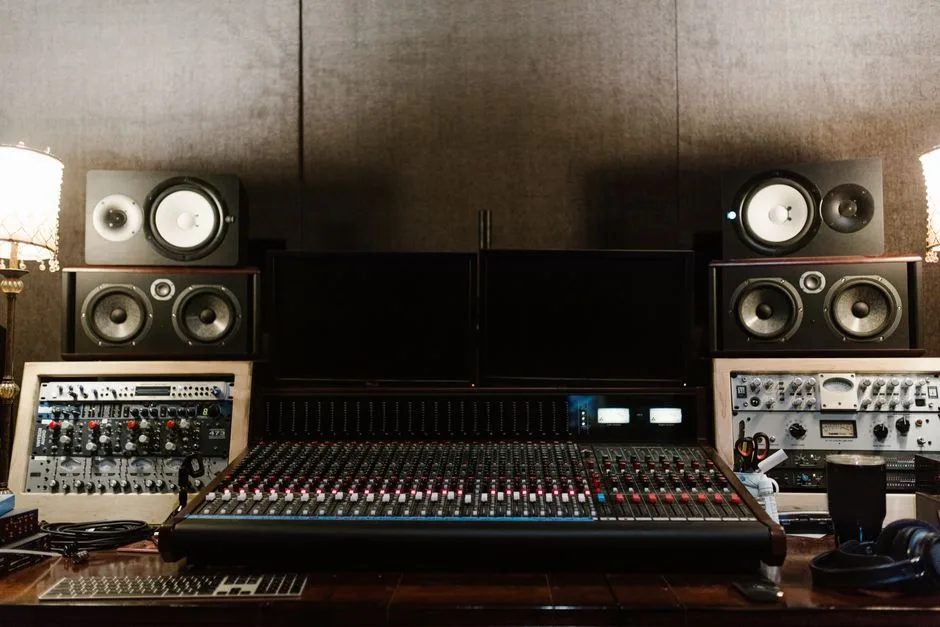
From script to screen
A good time-tracker maps each stage: idea, drafting, rough cut, final edit, and review. It keeps you honest about time spent on each step and helps you plan next steps. A useful resource on this topic: Avukatlar için Süre Hesaplama Araçları.
This clarity helps when you juggle multiple projects, like a short film and a music video. You can switch contexts without losing track.
Tools that log activities automatically reduce the friction of manual entries and keep you in the creative zone.
- Automatic activity tagging
- Project-wide logs
- Progress dashboards
Choosing kid-friendly features
Look for a clean interface, simple controls, and gentle reminders. A bright, intuitive design helps younger users stay engaged without feeling overwhelmed.
Playful cues—like progress bars or achievements—can boost consistency, as long as they don’t distract from the task.
Ensure privacy settings are basic and transparent so you can control what’s shared.
- Simple UI
- Gentle reminders
- Clear privacy options
Options that fit different levels
Free vs paid—what you actually gain
Free versions are great for beginners who want to test the idea. Paid plans often unlock features like deeper reporting or offline use, which can matter for busy weeks. A useful resource on this topic: Avukatlar için PTT UETS Süre Takip ve Hesaplama Uygulaması.
- Check your needs
- Try the free tier
- Assess feature fit
- Decide on a plan
Consider whether you’ll benefit from time estimates, project budgets, or export options to share with a team.
Balance cost with how often you’ll use it and the value of better planning.
- Free trial availability
- Advanced reports
- Offline mode
| Feature | Option A | Option B |
|---|---|---|
| Ease of use | High | Medium |
| Automatic logging | Yes | No |
| Export options | CSV PDF | CSV |
Popular patterns for setups
Many users start with a single project, then add sub-tasks as ideas grow. This mirrors how a film or game project expands from concept to final cut.
Using templates for frequent tasks saves time and keeps you consistent across projects.
Regularly review your log to spot bottlenecks and keep momentum.
- Single project then sub-tasks
- Task templates
- Regular review
Start with a routine: log at the end of each session or when you finish a task.
Pitfalls to dodge

Common time-tracking mistakes
Entering hours late or inaccurately undermines the purpose of the tool. Start with a routine: log at the end of each session or when you finish a task.
Overcomplicating the setup leads to empty data fast. Keep the category list short and the interface simple.
Relying on a tracker to improve focus without discipline won’t help; you still need a plan and a schedule.
- Late logging
- Overcomplication
- Lack of planning
When to pivot or drop a tool
If the app clashes with your creative flow, it’s time to reassess. A tool should feel like a helper, not a hurdle.
Consider swapping to a simpler option or changing how tasks are tracked to regain momentum.
If data becomes hard to interpret, prune unused features and focus on core needs.
- Flow-friendly
- Simpler option
- Keep only useful features
Advanced integrations
Connecting apps for speed
Link time-tracking tools with music libraries or video editors to automate project time stamps. This helps you see how long you spend drafting scripts, cutting scenes, or tagging music cues. It also reduces manual entries, so you stay in the flow.
- Identify your core apps to connect first.
- Set up one automated rule, then expand.
- Keep an eye on data quality across tools.
Automations can trigger reminders when a task stays idle and pouvez alert when a project nears a deadline. These cues keep a kid-friendly workflow steady without nagging interruptions.
Evaluate whether the integration supports your favorite entertainment apps, not every badge or badge claim matters. Aim for a handful of reliable connections rather than a sprawling web of forced links.
- Choose two primary apps to connect
- Test a simple task to confirm sync
- Set a gentle reminder cadence
- Review sync once a week
Team sharing and collaboration

Sharing work with teammates
Time-tracking can be shared across a small team, helping coordinators see who’s handling what and when. Clear visibility reduces overlap on scenes, sound mixes, or poster drafts. It also helps new contributors learn the pace of a project.
Use shared dashboards to summarize weekly progress so everyone stays aligned. Colleagues can comment on entries, ask for clarifications, and adjust estimates as needed.
Respect privacy by limiting what each member can see. Use role-based access so junior editors don’t view sensitive planning notes.
- Set read/write permissions
- Create a weekly team digest
- Use comments for clarification
- Review access quarterly
Mobile convenience
Tracking on the go
Mobile apps let editors capture time when ideas strike outside the desk. A quick note about a scene idea or a rough cut can be saved and labeled for later refinement. This keeps momentum without losing early thoughts.
- ☐ Keep essential apps installed for quick access.
- ☐ Use one-tap entries to minimize disruption.
- ☐ Review mobile logs during daily wrap-up.
Offline mode lets you log hours during travel or in locations with spotty Wi‑Fi. When you reconnect, data syncs automatically without extra taps.
Consider battery life and notification load. Choose a lean setup that sends only essential alerts so you don’t interrupt creative sessions.
- Enable offline logging
- Dim notifications for focus hours
- Use voice notes for quick entries
- Check sync after long breaks
Privacy and security

Protecting your tracking data
Time data can reveal sensitive work plans, so lock your account with a strong password and two-factor authentication where possible. This protects scripts, schedules, and creative notes from casual snooping.
Regularly review connected devices and revoke access for old tools you no longer use. Clean connections reduce risk and keep audits simple.
Educate younger users about what data is shared and why. Clear boundaries help maintain trust in a family-friendly workflow.
- Use 2FA if available
- Review connected apps monthly
- Limit data sharing with teammates
- Clarify what is kept private
Frequently asked questions
Do these tools replace a project manager?No. They provide visibility into time use and help teams plan better. A kid-friendly setup keeps friction low and supports collaboration without centralized gatekeeping.
Can private notes be kept private?Yes. Set privacy boundaries for notes and entries. Use separate fields or private sections so only designated people can see sensitive planning.
What if the app stops syncing?Check internet connection, then retry. If it persists, disconnect and reconnect the integration, or start a fresh log for the project and migrate notes later.
How should kids learn to log time?Encourage short, clear entries after tasks. Use prompts like task name, duration, and one sentence on what was done to keep it simple and useful.
Next steps for readers
Begin with one reliable time-tracking tool, add a single integration, and run a short test project to measure impact. This avoids overwhelm and builds confidence.
Set a regular review cadence, such as a 20-minute Friday wrap-up, to translate logs into better planning and sharper schedules for upcoming entertainment tasks.
If you enjoyed this article, we recommend checking out Süre Takibi İçin En İyi Seçenekler: for further reading.
For more insights on this topic, you might find Practical guide to attorney time-tracking tools particularly informative.
If you enjoyed this article, we recommend checking out A clear checklist for legal time-tracking for further reading.
Add Best Movies for Kids & Families to Watch together. as a preferred source on Google


